
Bridge
Over five million English-language learners sit in mainstream U.S. classrooms with little real-time support. Bridge is a dual-portal tool: a desktop reading experience for students and a mobile dashboard for teachers, connected by a one-tap check-in system.
- Role
- UX/UI Designer
- Timeline
- 8 weeks · 2026
- Type
- EdTech
- Tools
- Figma, FigJam
A dual-portal classroom tool that gives English-language learners a quiet way to signal confusion — and gives teachers the real-time insight to respond, before a student falls behind.
- Role
- UX/UI Designer
- Timeline
- 8 weeks · 2026
- Type
- EdTech
- Tools
- Figma · FigJam
- Outcome
- Two connected portals — desktop for students, mobile for teachers — linked by a non-verbal check-in that turns a silent struggle into actionable, real-time data.
A silent struggle, five million strong
Over five million English-language learners sit in mainstream U.S. classrooms with little real-time support. Instructions move too fast, vocabulary is unfamiliar — and a confused student has two bad options: interrupt the class and risk being singled out, or stay silent and fall further behind.
67%
of ESL students report feeling lost during classroom instruction
83%
of teachers say they lack tools to support multilingual learners
2×
more likely to disengage when vocabulary isn't scaffolded
Support you can dial up or down
The student portal runs on one idea: support should be adjustable, not fixed. A learner moves between levels of help inside a single lesson — never stuck at too much or too little.
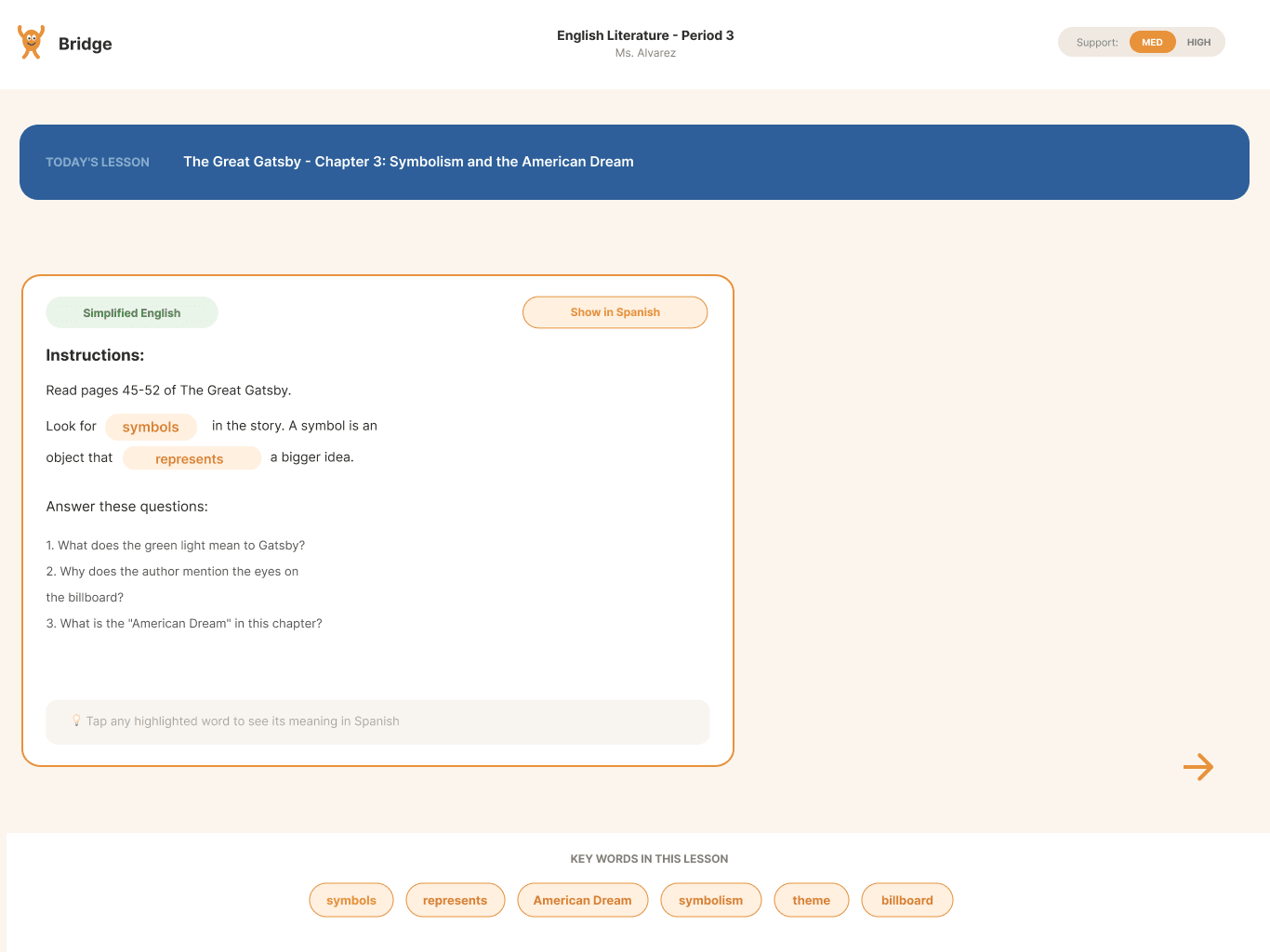
- 1
Adjustable support level
A MED/HIGH toggle lets students dial assistance up or down as the material gets harder.
- 2
Tap-to-translate vocabulary
Orange-highlighted words reveal instant translations on tap, without leaving the lesson.
- 3
Simplified or translated
Switch between Simplified English and a full translation — choose how much support the moment needs.
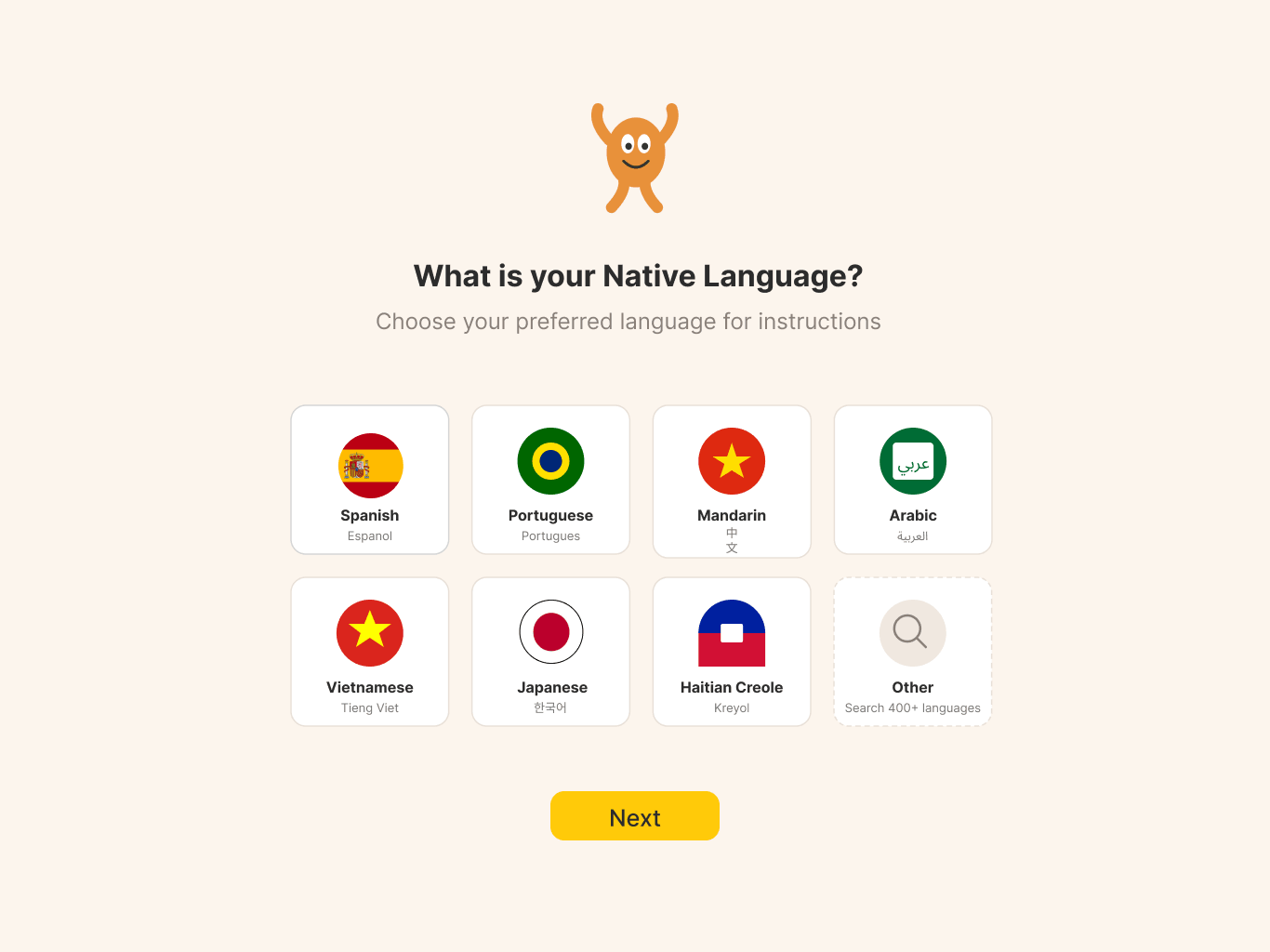
A voice without speaking up
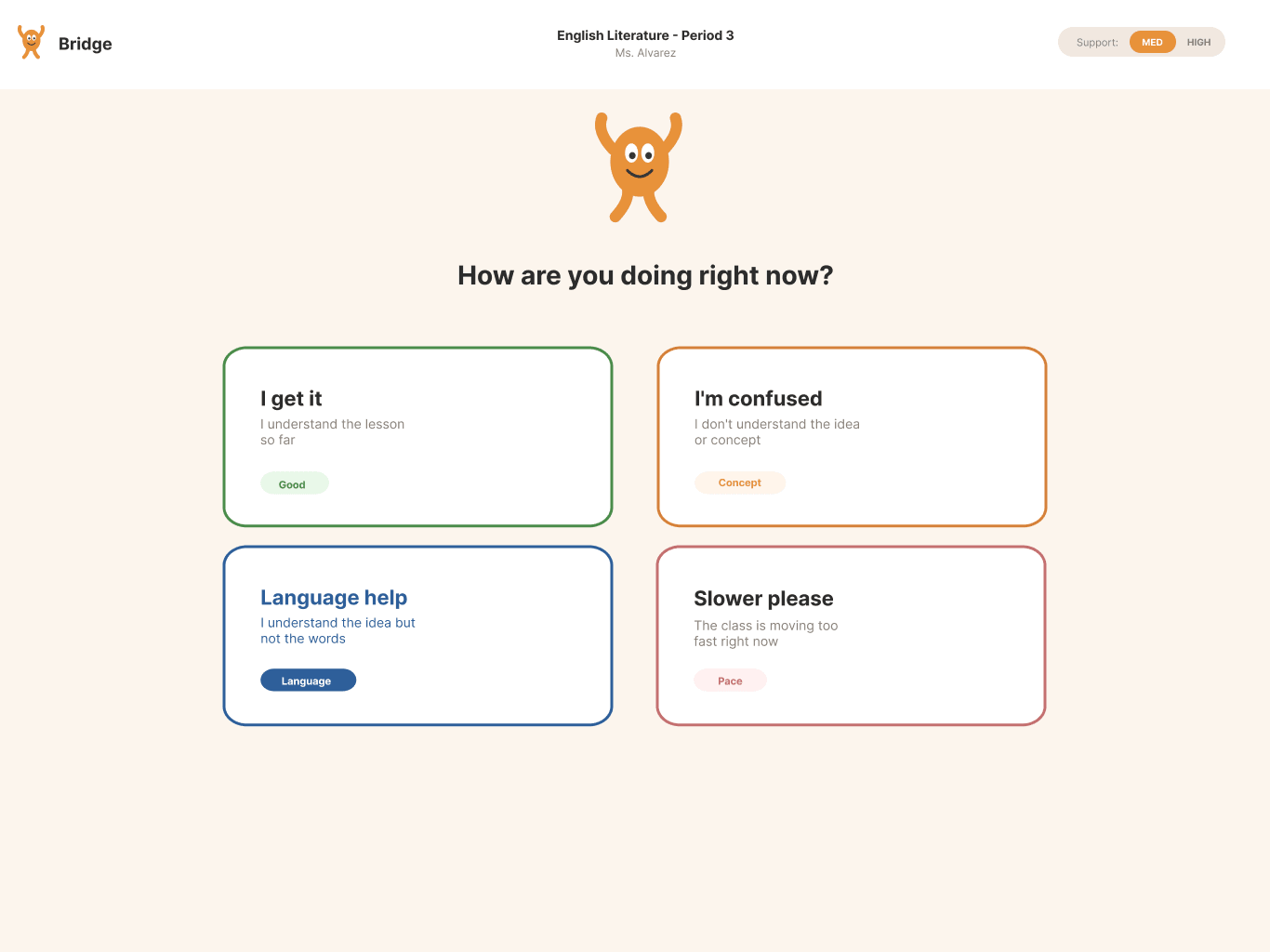
The heart of Bridge is a four-card check-in. One tap — no hand-raising, no embarrassment — and the signal goes straight to the teacher's dashboard. It respects the student's comfort zone while giving the teacher real data about where comprehension is breaking down.
"I get it" · "I'm confused" · "Language help" · "Slower please" — four taps that replace the courage it takes to raise a hand.
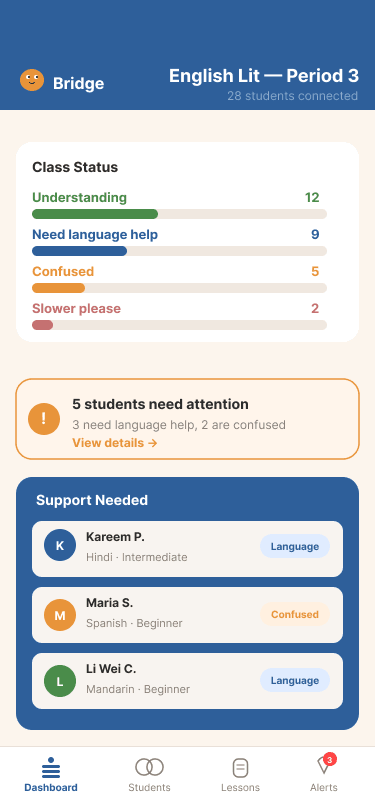
Real-time insight from their pocket
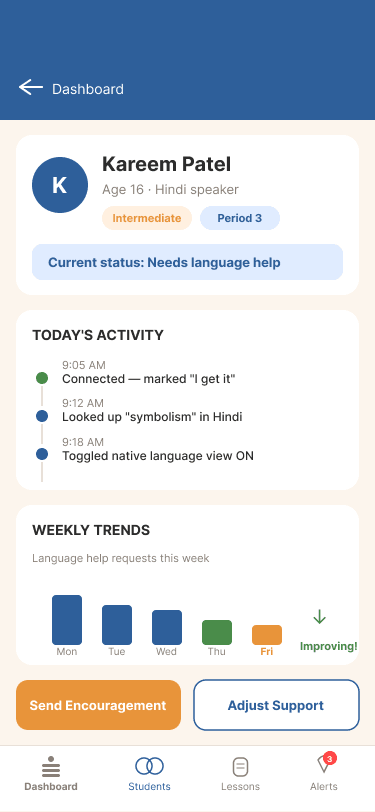
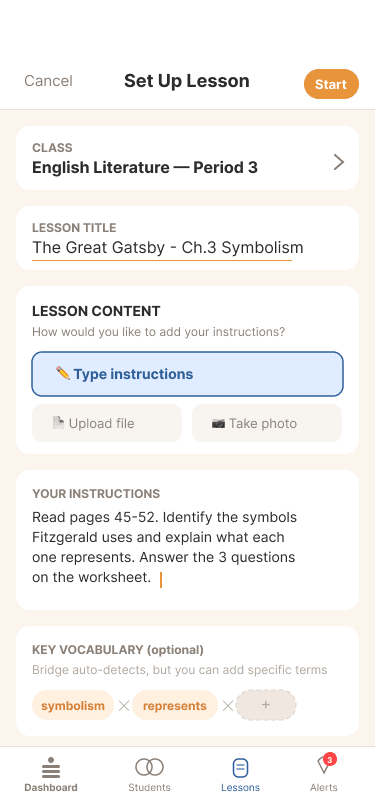
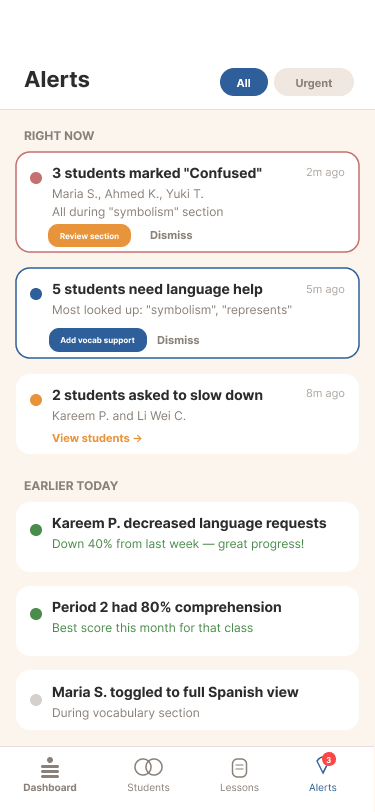
Teachers circulate the room, so their portal is mobile-first — built for quick glances and one-tap actions between desks. Student check-ins surface here live: a class-comprehension read, the students who need attention, and one-tap setup.
Why it looks and works this way
Warm, not clinical
Orange and green, rounded shapes, cream backgrounds, a friendly mascot. ESL students often feel othered — Bridge should feel like a friend, not a test.
Desktop for students, mobile for teachers
Students work on school Chromebooks; teachers move around the room. Each portal is built for how its user actually sits.
Non-verbal by design
No typing, no speaking — a one-tap signal. The lowest-friction way to ask for help is the one a nervous student will actually use.
What I learned
Designing for vulnerability requires empathy first. Understanding the fear of being singled out shaped every interaction — the check-in exists because the emotional cost of raising a hand is the real barrier, not the academic one.
Two user types, one loop. Student actions feed teacher insight in real time, so the system serves both sides at once rather than one at the other's expense. For a tool like this, simplicity is accessibility — keeping the UI warm and language-light is what makes it work across every literacy level.